Agent loops on a DeepSeek agent harness: AI that checks, acts, and reports back on its own
2026-08-09 · Tasman Goff · Last updated 2026-08-09
A normal chatbot waits for you. An agent loop doesn't — it wakes up on a schedule, checks the thing you care about, does the work, and leaves the result in your chat. MicroLearnerAI runs loops like that from one plain-English sentence.
The word "agent" gets stretched thin these days, so here's the concrete version. An agent loop has three parts: a trigger (a schedule, like every 15 minutes or weekdays at 8am), a job (check this inbox, summarize that folder, watch this metric), and a result (a conversation in your chat list with the finished work). Once it's set up, the loop repeats without you touching it.
The part that makes it real: it runs on the server
Plenty of tools will automate something while you're watching. The loop only earns the name when it keeps going after you leave. MicroLearnerAI's loops are scheduled tasks that run on our servers, which means the app can be closed, the laptop can be shut, and your phone can be in a drawer — the 8am run still happens at 8am.
When a run finishes, the result shows up in your chat list as a new conversation, marked with a ⏰ so you can tell it apart from chats you started yourself. You read it when you feel like it. The work doesn't expire and it doesn't interrupt you.
Setting one up is one sentence
No cron syntax, no visual workflow builder, no YAML. You describe the loop the way you'd describe it to a person:
- "Every weekday at 8am, check my Gmail for emails from my accountant and summarize them in my chat."
- "Every 15 minutes, look for emails I sent myself starting with TODO and do what they ask."
- "Every Sunday night, pull this week's expenses into a spreadsheet and leave it in my chat."
- "Every morning, check the news for mentions of my company and give me three bullets."
MicroLearnerAI turns the sentence into a scheduled task, shows it to you in the scheduled tasks panel, and starts running it. Pause it, edit it, or delete it from the same panel — or just say "pause the 8am email thing" in the chat.
What a loop can reach
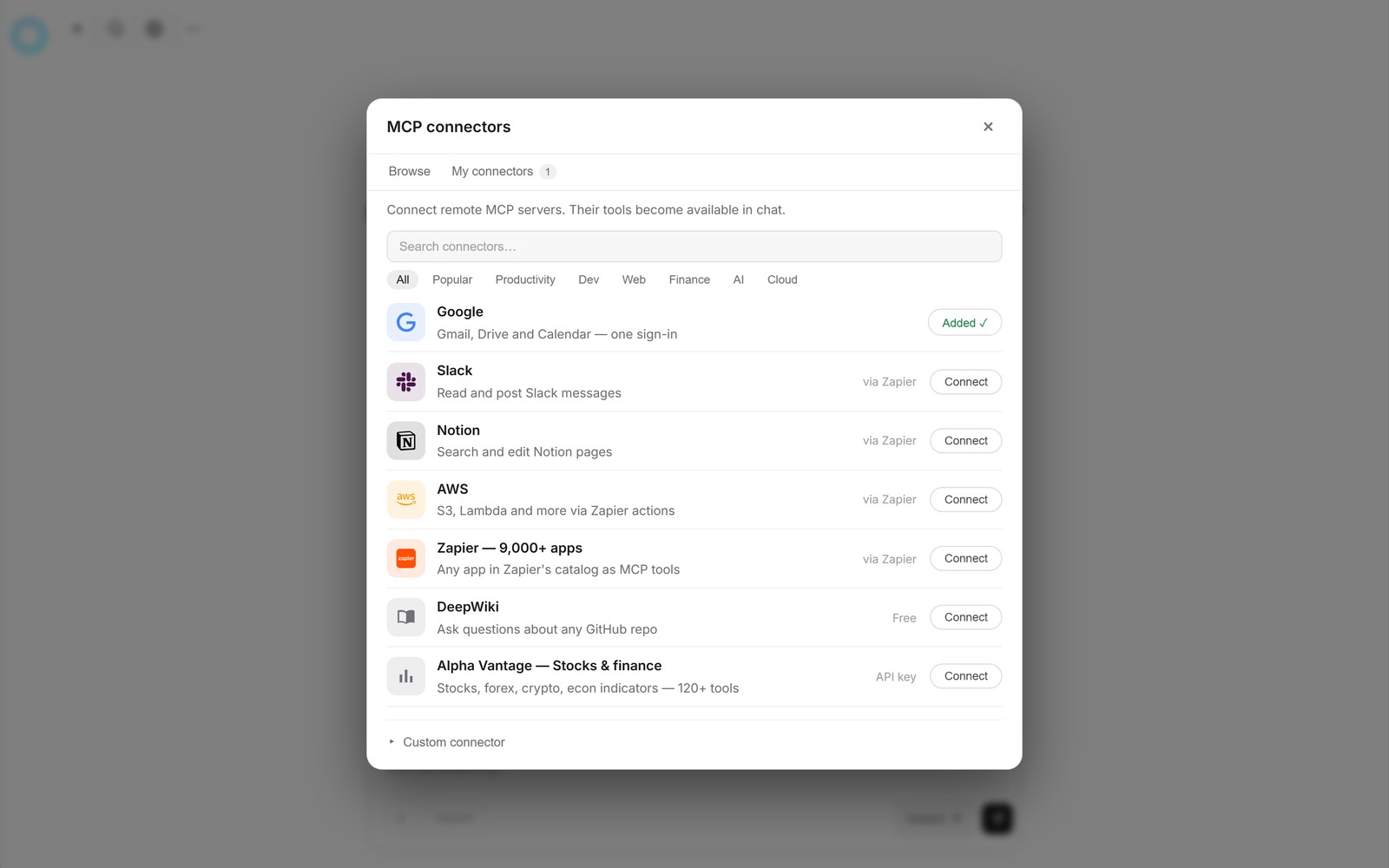
Loops use the same connectors as the chat: Gmail, Drive, and Calendar with one Google sign-in, plus Slack, Notion, and thousands of other apps. And because each run is a full MicroLearnerAI session, a loop can also write and run code — which means the "result" of a loop can be a real spreadsheet, a chart, or a drafted reply, not just a paragraph of text.
A word of honesty, since an AI acting unsupervised deserves one: start with low-stakes loops and check the first few runs. Be specific about what it should look at and what a good result looks like. It only sees the accounts you connect, access goes through your own sign-in, and you can revoke it any time. The judgment calls stay with you.
The agent harness underneath
A loop is only as good as what it can actually do on each run. Every MicroLearnerAI run sits on the same agent harness as the chat: the model plans, writes and runs code in a sandbox, connects to your apps, and can drive a real browser when a task lives on the web. In other words, it's an AI agent with tools — not just a summarizer — so an autonomous agent loop can end in a filled-in form, a generated report, or a spreadsheet, not only a paragraph of text.
Because the harness already knows how to use tools, turning a one-off chat into a recurring autonomous agent is a scheduling change, not a rebuild. The same pipeline that answers a question can be pointed at a site as an autonomous web agent, or handed a mailbox and told to act every morning.
FAQ
Does the loop run when the app is closed?
Yes — that's the point. Agent loops run on MicroLearnerAI's servers as scheduled tasks, not in your browser tab. Close the app, shut the laptop, go away for the weekend; the loop fires at its scheduled times and the result waits in your chat list, marked with a clock icon.
Do I need to code to set up an agent loop?
No. The setup is one plain-English message, like: every weekday at 8am, check my Gmail for anything from my accountant and summarize it in my chat. MicroLearnerAI turns that sentence into a scheduled task. There's no script, no cron syntax, and nothing to install.
What can a loop connect to?
Anything MicroLearnerAI can reach through connectors — Gmail, Google Drive, and Calendar with one Google sign-in, plus Slack, Notion, and thousands of other apps. A loop can also run code, so it can build files, process data, and generate reports as part of each run.
How do I pause or stop a loop?
From the scheduled tasks panel in the app — every loop is listed there and can be paused, edited, or deleted in a click. You can also just ask in the chat: "pause the 8am email summary." Nothing runs without being listed, and nothing is hard to turn off.
Pick one thing you check every day out of habit. Open MicroLearnerAI chat, describe it as a loop, and stop checking it yourself.
Also read: Scheduled tasks docs.